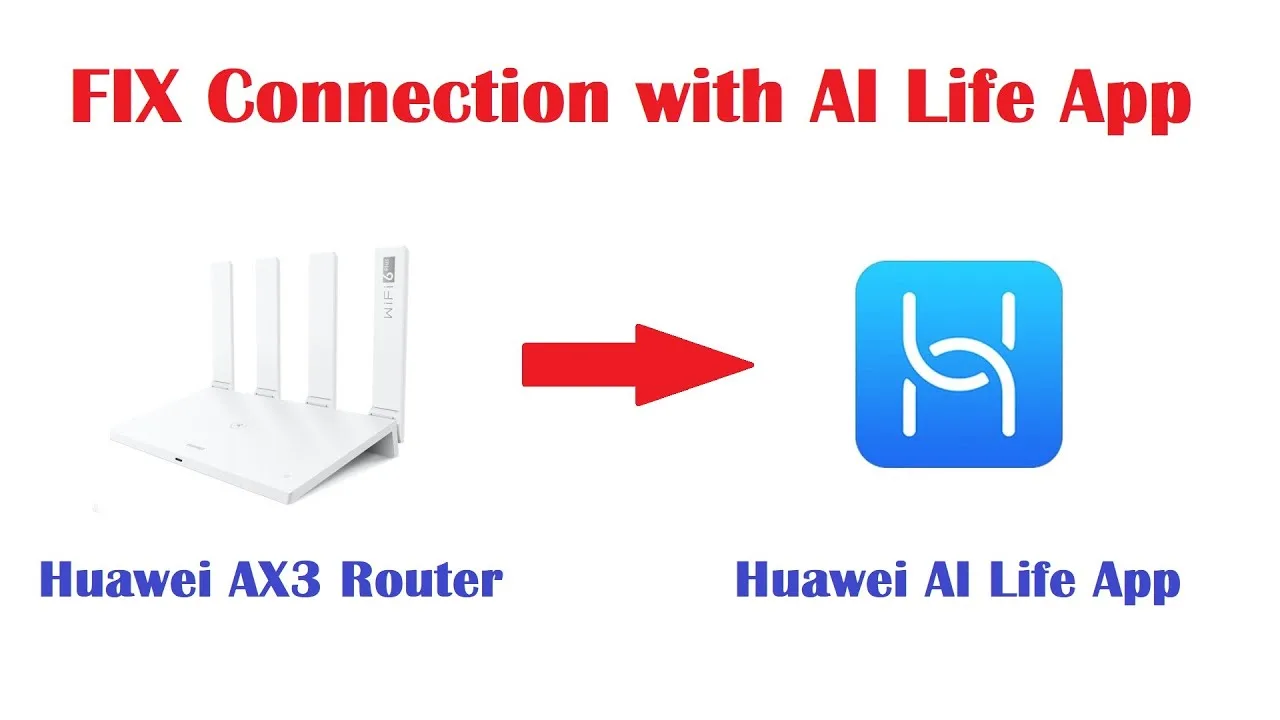
How to Set Up and Manage Your Router With AI Life
The router is the household's least-loved and most-important computer, and the AI Life smart app exists to make managing it feel like using an app instead of performing a ritual. This guide covers the full first setup: connecting the app to a supported router, naming your network, choosing a password worth having, setting the admin habits that protect everything else, and the checks worth running in the first week.
You will not need a laptop, a browser full of numbers, or the manual's tiny print. You will need the router powered, your phone on its Wi-Fi, and fifteen unhurried minutes.
By the end, the router stops being a blinking box and becomes what it actually is: the front door of your home's internet, which you now hold the keys to.
Connect the App to the Router
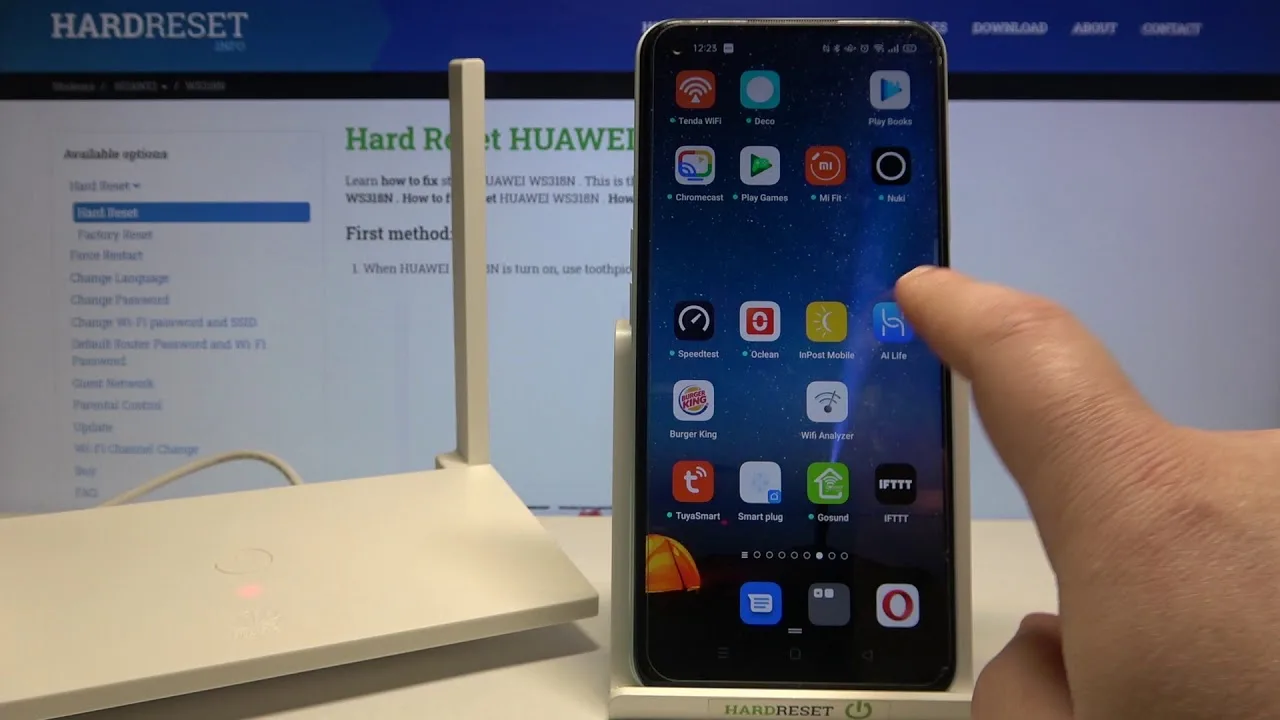
Power the router, let it settle until its indicators calm, and join its Wi-Fi from your phone — the network name and initial password are printed on the router's label. Open the app and let it discover the router on the local network; discovery is the app's home ground, and a router on the same network announces itself quickly.
If discovery stalls, confirm the phone is on the router's own Wi-Fi and not on mobile data or a neighbourly extender, and that local-network permissions are granted. Discovery failures are almost always geography — the phone is simply not standing where the router can be seen from. The full toolset you are entering is introduced in the core functions in AI Life.
Name the Network Like You Mean It
Choose a Wi-Fi name you are happy to say aloud to guests and see on every device you own. Avoid names that advertise the router model or your address; the name is broadcast to the street, and it should give the street nothing but a small smile.
Where the router offers dual bands, a single shared name with the router steering devices between bands is the simplest good life for most homes. Separate names earn their keep only when you have a specific device that behaves better pinned to one band.
Choose a Password Worth Having
The Wi-Fi password is a real password: long, unique, not the router's admin password, not a birthday, not the name on the door. It will be typed rarely — devices remember it — so length costs you almost nothing and buys genuine security.
Store it in a password manager and share it from there when guests need it. A password that lives on a sticky note under the router is a tradition, and like many traditions involving security, it survives mostly by nobody examining it.
Set the Admin Side Properly
Change the router's administrative password from its default and store it beside the Wi-Fi one, distinctly. The admin password guards the settings themselves; it deserves to be different from the password that merely joins the network, because the people you share Wi-Fi with should not thereby gain the keys to the building.
Note the app account you manage the household under as well. Three credentials run a modern home network — app account, Wi-Fi, admin — and knowing which is which prevents nearly all future lockout archaeology.
Place the Router for the Home You Have
Central, elevated, out of cupboards and away from thick walls and metal: the unglamorous placement rules decide your coverage more than any setting in the app. Set the router up where the home's life happens, not where the line happens to enter, if cabling allows even a few metres of grace.
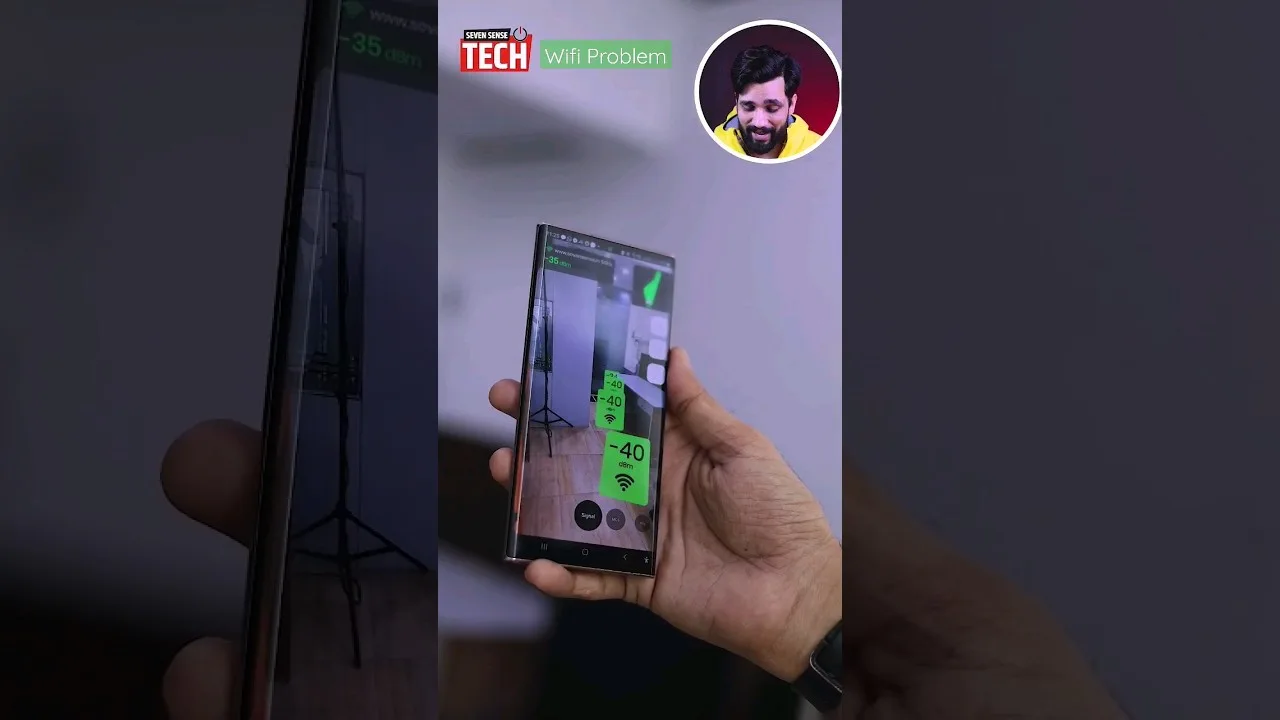
Then walk the home with the app's signal view open. The dead corner you suspected will confirm itself, and either a small relocation or a future mesh node will answer it. Placement first, purchases second — the coverage method is expanded in checking and improving Wi-Fi signal with AI Life.
First-Week Checks
In the first week, glance at the connected-devices list daily. You will learn your household's normal population — and a normal you recognise is the foundation of every later security judgement, because the stranger device of month three is only visible against it.
Run one speed check from the app at the router and one from your usual chair, and note both. Those two numbers, kept, become your baseline when a future evening feels slow and everyone starts guessing.
Mesh and Extenders, When One Box Is Not Enough
Large or stubborn homes outgrow a single router's reach, and supported mesh nodes extend the same network rather than forking it into rival names. Add nodes through the app, place them where signal is still decent rather than where it has died, and let the system steer.
Resist stacking unrelated extenders with their own network names as a first resort. One network, one name, one manager — the app — is the household architecture that stays comprehensible at midnight when something misbehaves.
Connected, named, properly passworded, sensibly placed, and baselined in its first week: a router set up this way disappears into the home's infrastructure, which is the highest compliment networking ever earns.
Keep the three credentials distinct and recorded. Everything else about managing this router can be relearned; access cannot.
Keep the router's label photographed in your password manager entry — model, serial, default names — against the day the box is moved, buried, or read by torchlight during an outage. Setup information is never needed urgently until the moment it is needed very urgently indeed.