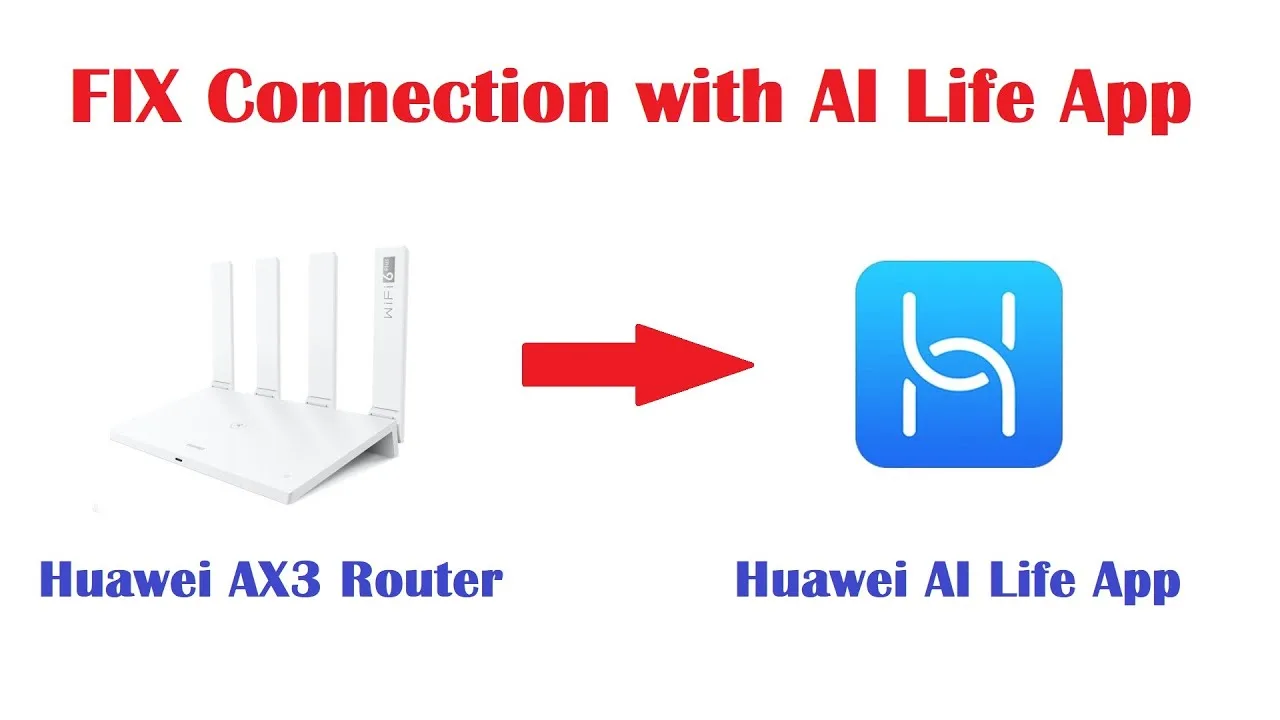
How to Update AI Life to the Latest Version
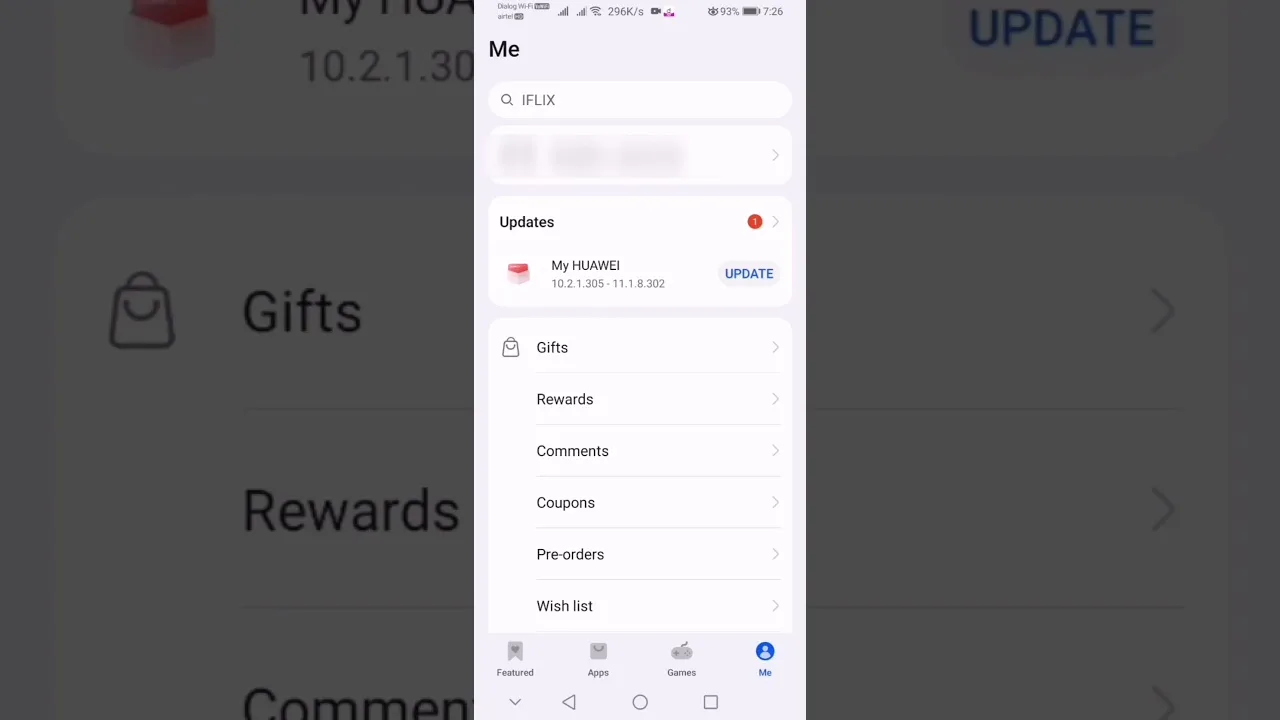
A device-management app is infrastructure: when AI Life for Android updates, the improvements are about the things you trust it with — new router models supported, steadier device discovery, clearer diagnostics, fixes for pairing quirks. Updating carelessly, though, makes people nervous for a good reason: nobody wants to reconfigure a household network because an app changed.
This guide removes the nerves. You will update in place, verify that your router and devices are exactly where you left them, and fix the small set of problems Android can place in the way — with the reassurance, stated early, that your network settings live on the router, not in the app.
Note your installed version first, and do the update on the home network itself, where verification means walking the app through its real duties.
Check the Installed Version
Find the version in Android Settings under Apps, or in the app's own settings, and note it with the date. After updating, the same figure is your proof the new build landed rather than merely downloaded.
If you are updating because a device will not appear or a router misbehaves in the app, record that symptom beside the version. The fault order in AI Life not working: common fixes starts from exactly that pairing.
Update in Place, Setup Intact
Install the new build over the existing one, the same route as the original setup in how to install AI Life on Android. Your sign-in, your household, and your device list are preserved, because they belong to your account and your router — the app is their window, not their home.
Do not uninstall first to be thorough. Thoroughness here buys a fresh sign-in and a rediscovery round, and cures nothing an in-place update leaves behind.
Verify by Managing Something
Open the app and do one real task: open your router's page, check a connected device, glance at your earbuds' battery. Management working end-to-end is the only verification that matters for a tool like this, and it takes less than a minute.
If a device shows as offline that is plainly online, give discovery a moment and refresh before worrying. First launches after updates re-index the household, and a brief pause is the app tidying, not losing, your things.
Permissions After a Major Update
Device discovery leans on permissions — local network access, location on some Android versions for Wi-Fi scanning, Bluetooth for audio gear. Major updates can re-ask for them, and a refused permission presents as devices vanishing, which looks like an app failure and is actually a settings fact.
Spend thirty seconds confirming the permissions read as they did before. It is the cheapest diagnostic in this entire guide and the one most often skipped.
When the Update Stalls
Storage is the usual suspect: update packages need temporary room, and phones full of video deny it quietly. Clear caches, remove old downloads, restart, and retry on a stable connection.
If the source is having a bad hour, wait. Your current build manages your network perfectly well in the meantime, and a delayed update costs less than a corrupted install ever will.
Router Firmware Is a Separate Matter
Do not confuse the app's update with the router's firmware update; they are different operations on different devices, and the app may offer the router's separately. Firmware deserves its own unhurried moment — everyone home, nobody mid-call — and its own guide-level care.
When the app announces router firmware, read its notes, schedule it for a quiet quarter-hour, and let it finish without power interruptions. The app update you just performed changes nothing about that advice, because it changed nothing about the router.
Make It a Seasonal Habit
Management apps reward a seasonal rhythm: update the app, glance at the device list for strangers, confirm firmware status, done. Four times a year, ten minutes each, and your home network's control panel stays current and honest.
Keep the version note. When a device behaves oddly in spring, 'what changed' is the first question, and your note answers it before the guessing begins.
Update in place, verify by managing one real thing, check the permissions. Your network never moved — it lives on the router — and now its window is newer.
Infrastructure should be boring to maintain. This routine keeps it that way, four times a year.
If you manage a second household's app as well — a parents' home, a rental, a workshop — give it the same round on the same day. Fleets drift apart silently, and the version confusion you prevent across two households is worth more than the few minutes the second update costs.
Finally, let the rhythm be boring in your records as it is in your experience: version, date, one-line verdict. A year of such notes is the app's biography written from your chair, and it will make every future 'it changed after some update' conversation a matter of reading rather than remembering.
Treat the first management task after any update as a handshake rather than a verdict: open the router, read the list, close the app. Thirty seconds of normality, confirmed, is worth more than an evening of wondering.
Infrastructure updated without incident is a small, repeatable triumph. Collect them seasonally and the household's technology stops having anniversaries of disaster.