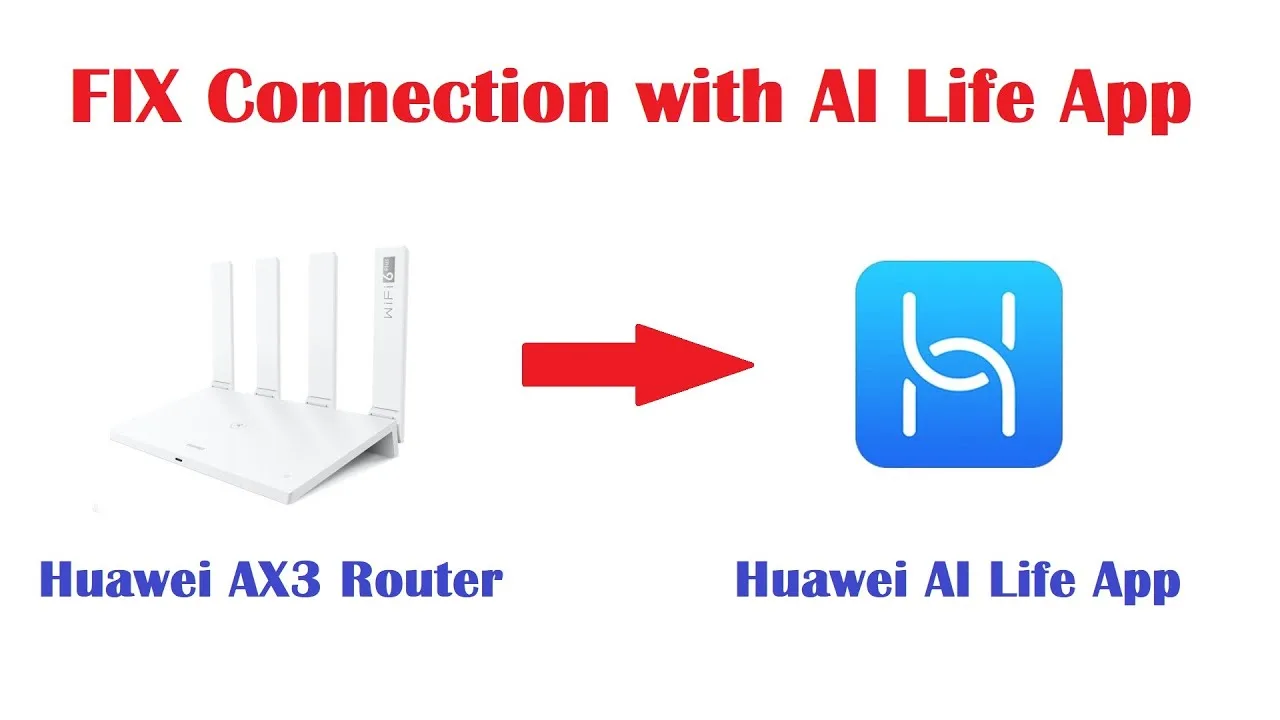
AI Life Network Diagnostics and Troubleshooting Tools

When the home internet misbehaves, households guess; technicians isolate. AI Life device manager includes diagnostic tools that move you from the first group to the second: checks that test the router, the connection, and individual devices, presented in language a mortal can act on. This guide teaches the diagnostic method — run the built-in check first, read its result like a report rather than a verdict, isolate device by device, and recognise the moment the fault leaves your house and becomes your provider's.
The method matters more than any single tool. A calm sequence — observe, check, isolate, conclude — solves in twenty minutes what random restarting chases for a weekend.
Bring the specific complaint: which device, which activity, which hour. Diagnostics begin with a well-stated symptom, and half of this guide is learning to state one.
Run the Built-In Check First
Before touching a cable, run the app's network check and read all of it: router health, internet connection, signal, and any device-level complaints it raises. The check exists to convert 'the Wi-Fi is weird' into a list of suspects, and it is embarrassingly often right about which suspect matters.
Save or note the result while the fault is live. A diagnostic captured during the crime is evidence; the same check run after everything mysteriously healed is trivia. Your future self, and any support conversation, will thank you for the timestamped version.
Read Results Like a Technician
Separate the layers the report implies: is the router itself healthy, is its link to the internet alive, is the Wi-Fi reaching the room, is one device misbehaving alone? Each layer has different owners — your placement, your provider, your device — and most home troubleshooting fails by treating a layer-three problem with a layer-one remedy.
A healthy router with a dead internet link is a provider story. A strong network with one suffering device is a device story. The report's job is to tell you which story you are in; your job is to believe it.
Isolate Device by Device
Test the same activity on two devices in the same chair: if both suffer, the network is accused; if one thrives, the other device is. Then test the suffering device in the router's room: if it heals, geography was the fault; if it does not, the device itself graduates to prime suspect.
This two-question isolation — another device? another room? — resolves the majority of home network mysteries without a single setting changed. It is the field method behind the survey craft in checking and improving Wi-Fi signal with AI Life, applied at the speed of an incident.
Speed Tests Without Superstition
Run speed checks at the router and at the point of pain, at the hour of pain, and compare against your noted baseline rather than against the number on your contract's advertisement. A connection delivering its usual evening figure is not broken, however the evening feels; a connection at a third of its baseline has a case to answer.
Test wired or beside the router to acquit the internet link itself, then let Wi-Fi stand trial separately. Conflating the two is how providers and routers spend weeks blaming each other in your kitchen.
Restarting, Done as a Procedure
Restarting works often enough to be folk wisdom and sloppily enough to waste evidence. Do it as a procedure: note the symptoms and the diagnostic result first, restart the router alone, allow it full settling time, then retest the original complaint before changing anything else.
One change, one retest, one note. That discipline converts the folk remedy into an experiment, and experiments accumulate into knowledge of your own household's failure patterns — the most valuable network document you will ever own.
Recognise the Provider's Fault
The signatures: router healthy, internet link down or erratic for the whole house at once, neighbours on the same provider complaining, the fault keeping office hours with the evening peak. When the evidence points outward, your remaining tools are documentation and a support call made with your diagnostics in hand.
Bring specifics to that call: times, the app's check results, your baseline versus current figures. Support conversations shorten miraculously when the customer arrives as a colleague with data rather than a victim with feelings, however justified the feelings are.
Keep a Fault Log
Three lines per incident — date, symptom, verdict — kept in a note. Within a season the log reveals your household's true recurring faults, which are almost never the ones memory insists on, and seasonal patterns (the summer heat fault, the evening congestion) announce themselves in the margins.
The log is also where recoveries are recorded, so the next occurrence starts from last time's cure instead of from folklore. The register and baseline habits from the AI Life device management guide complete the system: known devices, known numbers, known faults.
Check first, read in layers, isolate with two questions, restart as a procedure, and know when the fault has left the building. That sequence is the whole difference between a household that guesses at its network and one that manages it.
Start the fault log with the next incident, however small. By the third entry you will wonder how you ever troubleshot without it.
Read another household's diagnostics when you help them — a relative, a neighbour — and notice how portable the method is. Layers, isolation, baselines: the tools were never really about your router, and the person who can diagnose any home's network is a genuinely useful person to be.