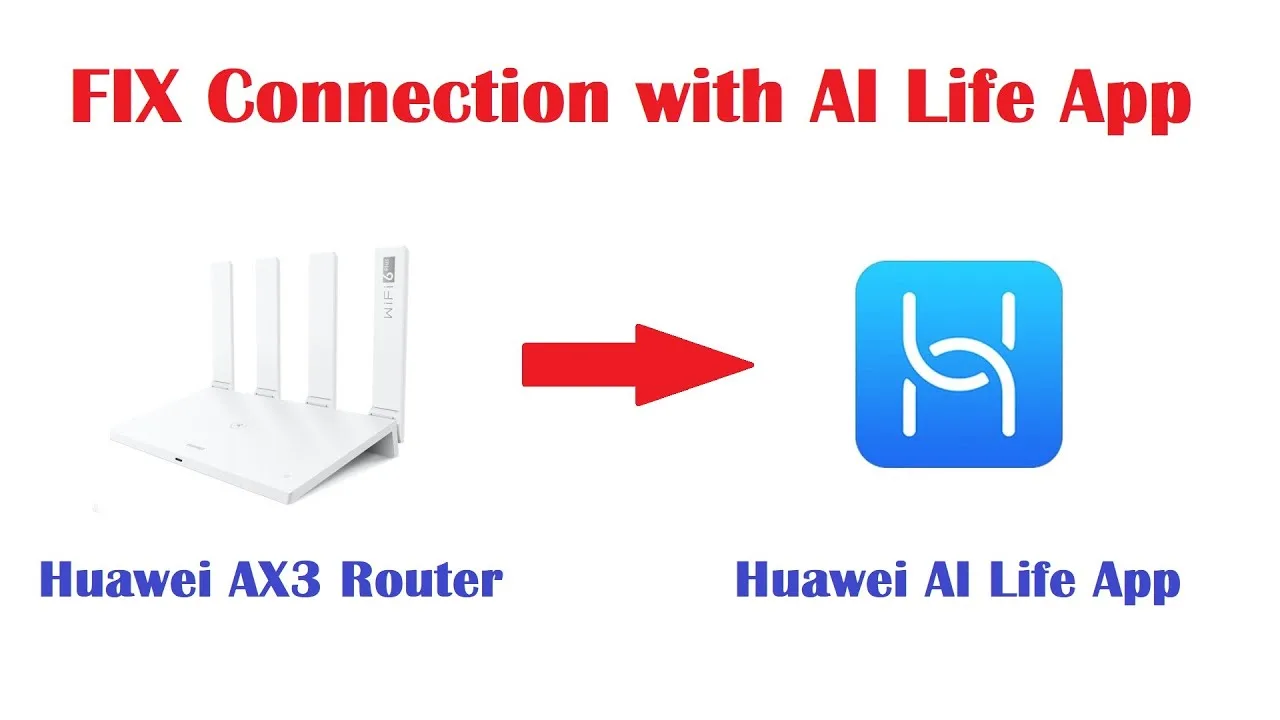
Fix AI Life Cannot Find Device Problems
'Cannot find device' is the most common and most misleading error in device management, because it reports a failed meeting as if it were an absence. The device is usually present, powered, and innocent; the meeting failed for one of a short list of reasons — permissions, networks, bands, Bluetooth state, distance — and this guide works that list in order for the AI Life companion app.
Work calmly and change one variable at a time. Discovery troubleshooting by random toggling converts one fault into three and burns the evidence of the first.
Before starting, state the case precisely: which device, new or previously known, and what changed since it last appeared. Half of all discovery mysteries confess at that sentence.
Permissions: The Silent Refusal
Discovery on Android leans on permissions that do not announce their importance: location access — used by the system for Wi-Fi scanning — local network access, and Bluetooth for audio and smart gear. A permission refused during setup, or revoked by a tidy-up, produces exactly this error with no further explanation.
Open the app's permission page in Android Settings and grant what discovery needs, then retry before touching anything else. This single check resolves a startling share of all cannot-find cases, including most that arrive wearing the costume of hardware failure.
Same Network, Same Room
For routers and Wi-Fi devices, your phone must be standing on the same network as the device — connected to the household Wi-Fi itself, not to mobile data, a guest network, an extender's separate name, or the neighbour's remembered signal. Check the phone's current network name and say it aloud; the obvious is the commonest culprit in all of troubleshooting.
Bring the phone into the device's room for the retry. Discovery protocols are local and sometimes short-ranged in spirit; geography settles arguments that settings cannot.
The Band Trap for Smart Devices
Many smart devices speak only the 2.4 GHz band, while your phone prefers 5 GHz, and some setup flows fail when the two are not temporarily on the same band during joining. If the household network uses one shared name, the router usually brokers this; where bands are separate, join the phone to 2.4 GHz for the setup, then return it afterwards.
This single trap accounts for most smart-plug and sensor joining failures ever reported. It is not a defect in your device or your router; it is a language difference, and setups are where languages must match.
Bluetooth State for Audio Gear
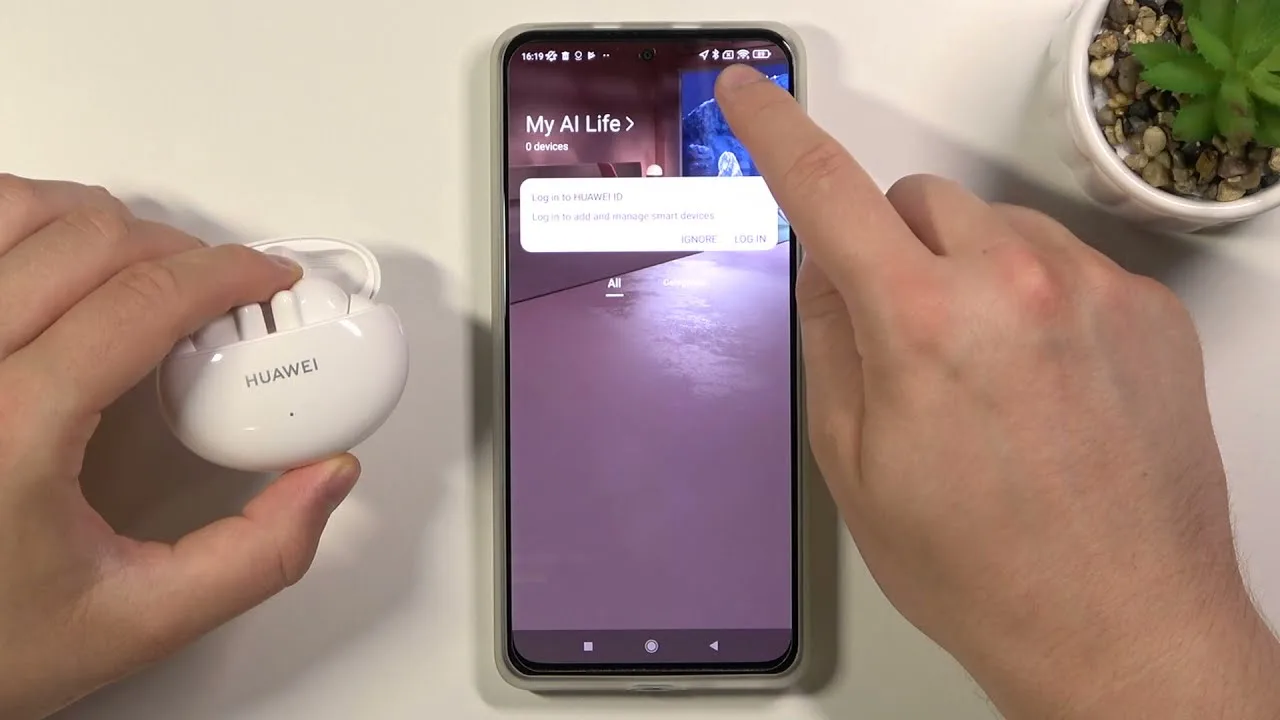
For earbuds and speakers, discovery rides Bluetooth: confirm it is on, confirm the device is in pairing state — usually case open, indicator in its pairing rhythm — and clear old pairings that may be claiming the device first, including a tablet in another room that auto-connects with enthusiasm.
Toggle Bluetooth once, in full, rather than repeatedly. Radios, like people, need a moment to forget the previous arrangement before accepting a new one. The pairing craft in full lives in managing earbuds and audio devices in AI Life.
Restart in the Right Order
When checks fail, restart with sequence: close the app fully, toggle the phone's radios off and on once, restart the device being sought (or re-seat earbuds in the case), and only then restart the router if a router is the missing party. Order matters because each restart clears a different layer's memory.
After each single step, retry discovery before moving to the next. The step that cures it is the diagnosis, and you can only learn it by changing one thing at a time.
Reset the Device, Not the Household
If a previously known device remains invisible, remove its stale entry from the app and set the device itself back to discoverable or factory state by its own instructions, then add it as new. Stale pairings — where each side holds half of an old introduction — are the commonest residue of updates and phone changes.
Reserve router resets for the end of the sequence and treat them with the respect the household's front door deserves. A device-level reset solves device-level ghosts; a router reset to cure one earbud is arson as a cure for a draught. The wider fault order in AI Life not working: common fixes places this guide's steps among the app-level causes.
When It Is Genuinely the Device
Occasionally the device has actually failed: no indicator life, no response to its own reset, invisible to every phone in the house. Confirm with a second phone if one exists — a device invisible to two independent seekers has confessed — and let warranty or replacement proceed without further ritual.
Record the case in your fault notes either way: what was missing, what cured it or condemned it. Discovery faults recur across years and devices, and your note is the difference between a two-minute fix next time and a repeated evening of archaeology.
Permissions, same network, right band, honest Bluetooth, ordered restarts, device-level reset: six doors, tried in order, open nearly every cannot-find case you will ever meet.
State the case precisely before you start, and change one thing at a time. Discovery rewards the methodical with almost comic reliability.
When you cure a case, tell the household the one-line cause at dinner. Discovery knowledge hoarded becomes repeated evening support; discovery knowledge shared becomes a family that checks permissions and bands before it calls you, which is the true graduation of every home's technician.