How to Manage Earbuds and Audio Devices in AI Life
For many users, the AI Life smart home app is less about the router and more about the small things in their ears: earbuds whose settings live here — controls, sound, firmware, battery — alongside speakers and other audio gear. This guide is the audio companion's manual: pairing cleanly, setting controls to the gestures you actually use, keeping firmware current, reading battery honestly, and curing the classic faults, including the one silent bud that has ended a thousand commutes.
Everything here assumes the devices are supported models managed through the app. The principles — pair from the case, update in quiet moments, diagnose in order — survive every specific model.
Bring your earbuds and their case, charged. Audio maintenance, like all maintenance, goes better with power in hand.
Pair From the Case, Cleanly
Pairing begins with the case: buds seated, case open, and the device discoverable as its instructions describe, with the phone's Bluetooth on and the app open to receive it. Most pairing failures are sequence failures — the case closed too early, Bluetooth toggled mid-handshake — and the cure is a slow, exact retry.
If a previous pairing haunts the process, forget the device in the phone's Bluetooth list and in the app, then pair as if new. Audio gear remembers old relationships stubbornly, and a clean slate is often the whole therapy.
Set Controls to Your Real Gestures
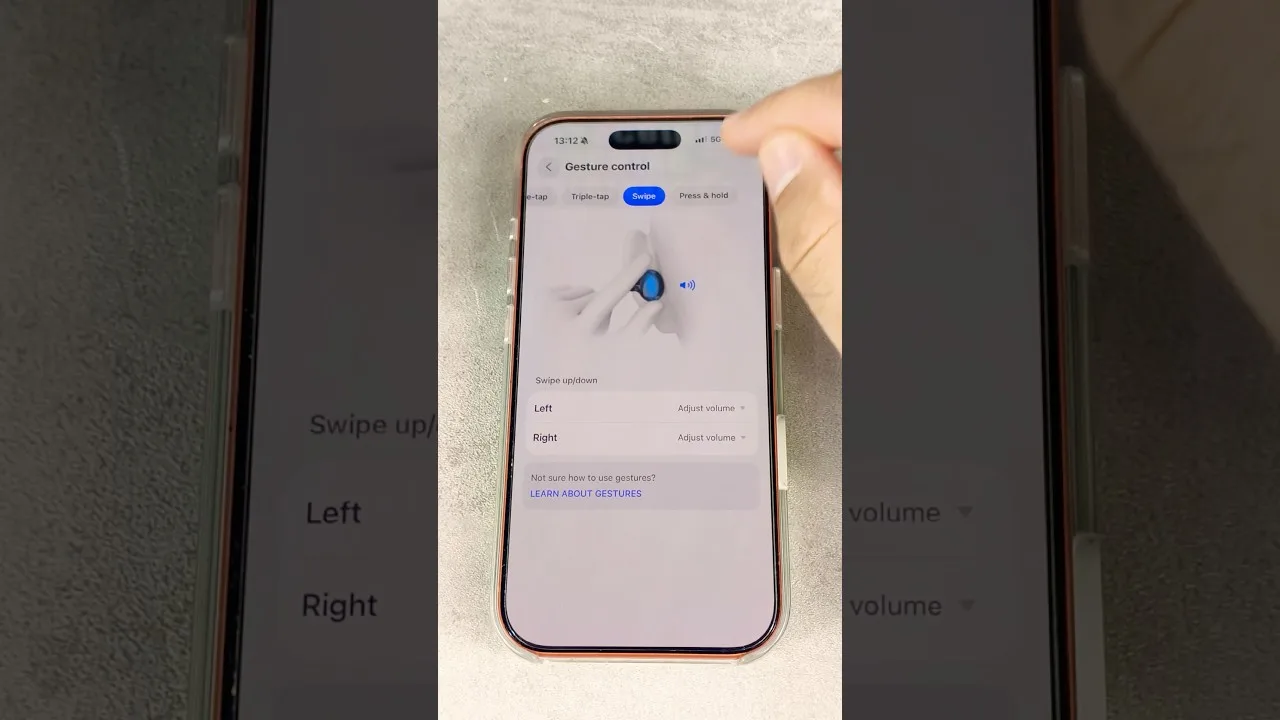
Default tap controls serve nobody's exact habits. Reassign them deliberately: the gesture you can perform without thinking should own the action you use most — pause for most people — and exotic actions belong on the gestures you perform rarely and deliberately.
Test the new mapping on a walk before trusting it on a run or a call. Controls are muscle memory under construction, and the first day is when the building either sets or cracks. The device's page in the app — reached through the register in the AI Life device management guide — is where the mapping lives.
Sound Settings With Restraint
Where equaliser or sound-effect options exist, adjust in small steps and judge with familiar music: one track you know by heart is a better measuring instrument than any preset named for a genre. Most listeners land within a nudge of the default, which was tuned by people with excellent ears and no knowledge of yours.
Beware volume habits while tuning. Louder always wins a quick comparison and usually loses the honest one; match levels before judging, and give your ears the final vote at the volume you actually live at.
Firmware: The Quiet Improvement
Earbud firmware fixes connection stability, call quality, and battery manners, and it arrives through the app's device page. Update with the case charged and nearby, on a calm connection, and let the process finish without pocketing the buds mid-transfer.
Check seasonally rather than hungrily. Audio firmware is maintenance, not entertainment, and a device that works is owed the respect of not being interrupted for rumours of better.
Battery, Read Honestly
The app shows battery for buds and case; learn your set's honest rhythm — how a commute costs, how the case refills — and ageing will announce itself as a rhythm change long before it becomes a failure. Sudden drops usually trace to a bud that did not seat and charge, not to a dying cell.
Clean the case contacts gently when charging grows unreliable; pocket lint is the great unmentionable of earbud mortality. A dry cloth and a wooden toothpick have resurrected more 'dead' earbuds than any service centre.
The One Silent Bud Clinic
Work in order: confirm both buds charged and seated, confirm the silent one is not simply muted by a control, forget and re-pair the set from the case, and check for a firmware update mid-diagnosis. The overwhelming majority of silent buds surrender to the re-pair, because the fault was the stereo partnership, not the speaker.
If one bud is silent after all of it, suspect the hardware honestly — a driver or battery at its end — and let the app's device information support any warranty conversation. The wider fault sequence in fixing AI Life cannot-find-device problems covers the discovery side when the app cannot see the gear at all.
Speakers and the Rest of the Shelf
Speakers managed through the app reward the same habits: firmware in quiet moments, placement away from corners that boom, and settings judged with familiar material. A speaker's page is also where multi-device arrangements are supervised, so name speakers by room and keep the register honest.
When the household's audio grows — a second speaker, a child's first buds — add each device deliberately, named on arrival. The register you keep kindly today is the one that will diagnose kindly tomorrow.
Pair slowly, map controls to your real hands, tune with familiar music, update in calm, and re-pair before mourning. Audio gear managed that way stays musical for years.
The silent bud is almost never dead. Work the clinic in order and let it prove that to you.
Keep one photograph of your audio shelf's settings — controls mapped, sound as tuned — in your notes. A replaced phone, a reset pair of buds, a borrowed case: each is a small amnesia, and the photograph is the memory that restores your preferences in minutes.